Sequel Intelligence: Send AI Summaries and Next Steps Directly to Sales Team
Last updated: October 19, 2026
AI-powered analysis of lead and account event and website engagement to drive ROI on marketing programs. Help SDRs leverage data with actionable insights.
Data-driven marketers that use Sequel already know about the power Audience Insights brings. With Sequel Intelligence, marketers (and all!) can now use the power of AI to understand lead and account history quickly and isolate what engagement matters for the next step.
Sequel Intelligence allows you to understand your audience like never before.
In this article, we'll cover:
How to get started with Sequel Intelligence
Running Intelligence tasks for specific needs
Configuring settings for data push (to SFDC)
Let's dive in!
Getting Started: How to Enable
In order to take advantage of Sequel Intelligence,
Reach out to your CSM to switch to our new and improved integration
*Currently for Salesforce only, other CRM integrations supported soon!
Once confirmed ON, go to Marketplace > Salesforce > Configure to revoke/re-authenticate the connection.
You are now connected to the latest SF integration and can take advantage of all that Sequel Intelligence has to offer!
Intelligence Settings
Now that you're connected, let's make sure the settings are set to be the most useful for your specific needs. To do this,
Navigate to Settings area in Sequel dashboard navigation
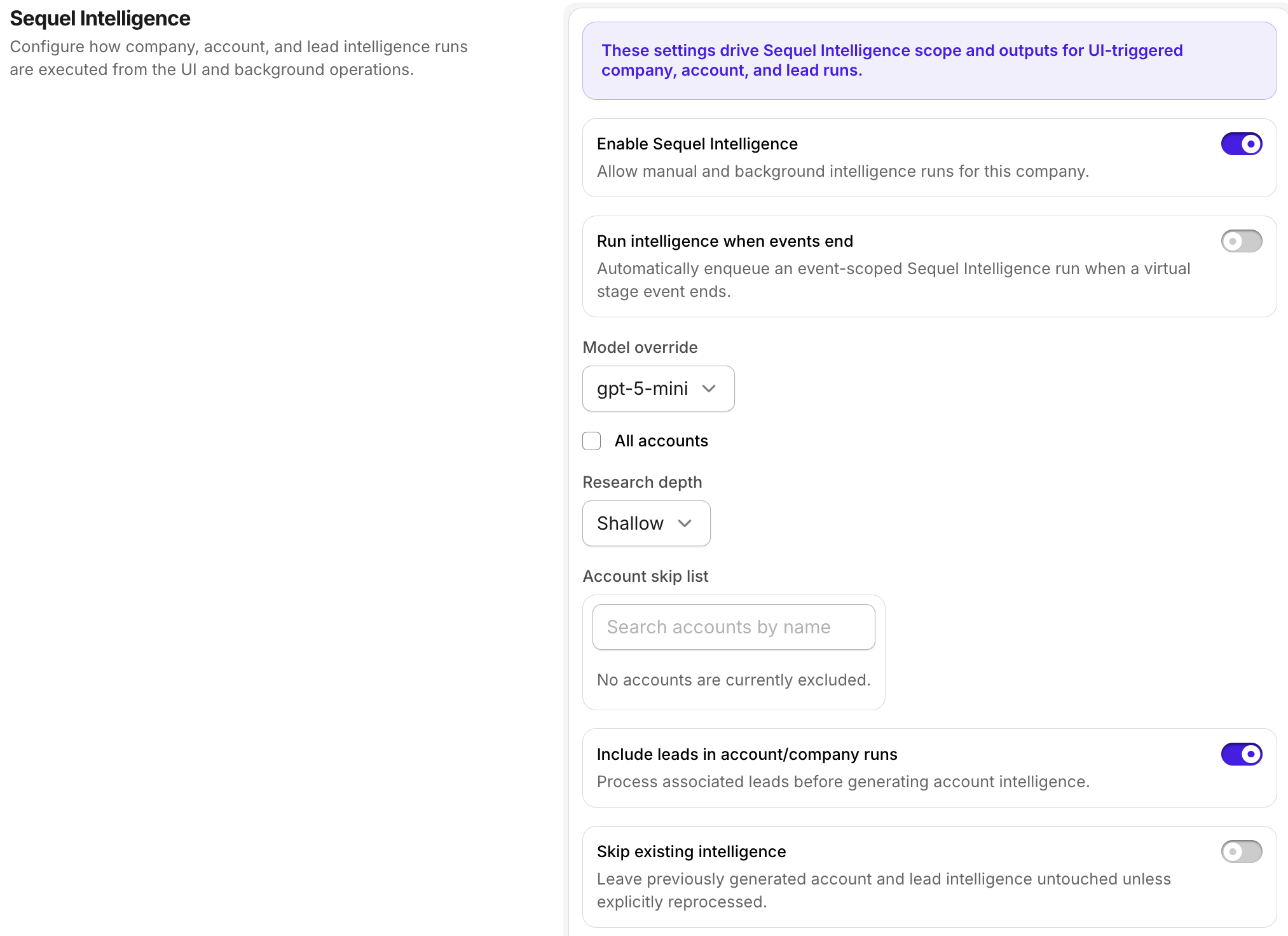
Under the Audience tab, you'll find options to customize Intelligence towards the middle of the page.
Choose intelligence run behavior: decide whether you want this to run after every event, turn off connection to CRM, or include leads in company intelligence runs.
Choose AI model
Choose research depth
Set an account skip list
Now that your general Intelligence settings are in place, time to configure your CRM mappings and behavior.
Configure Data Push to CRM
For Salesforce-connected teams, mapping AI summary, next steps, etc. from Sequel Intelligence gives sales and marketing teams more ways to answer the question "Now what do we do?"
If you'd rather not set CRM mappings yet and just want to see what Sequel Intelligence can show you, you can skip past this section. Sending to CRM fields is optional.
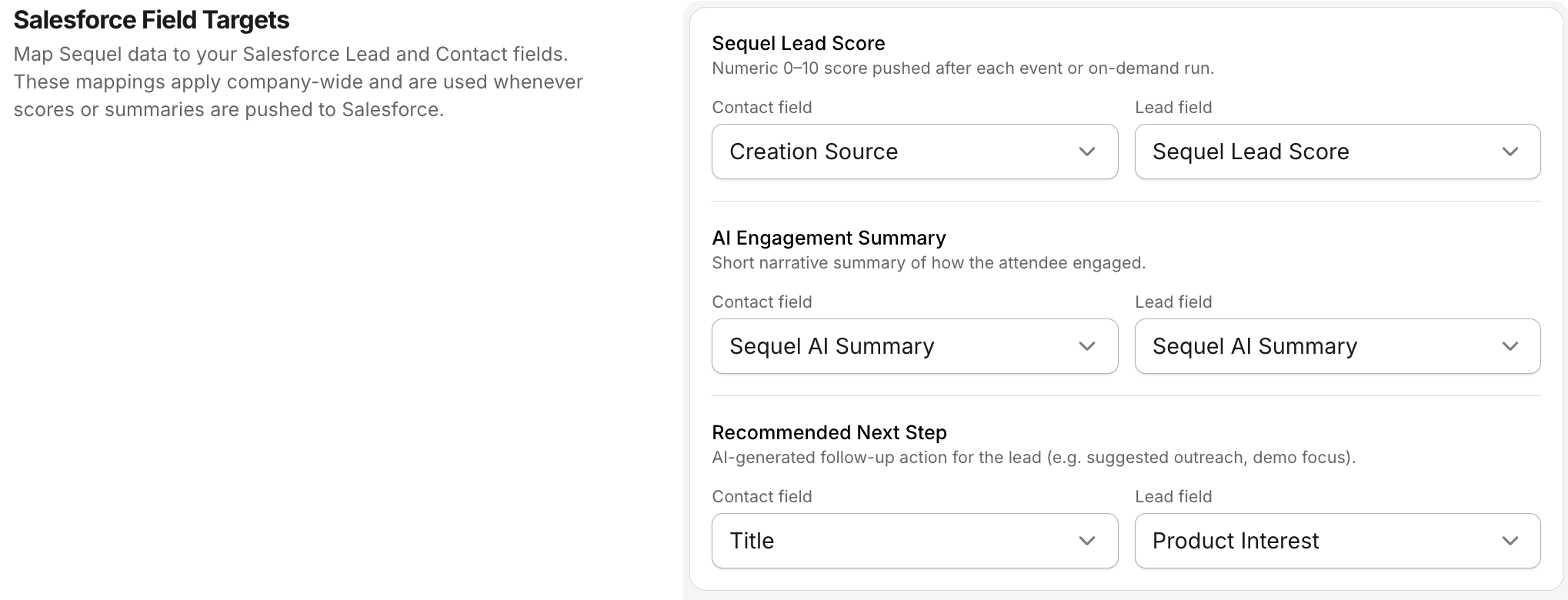
Under Sequel Intelligence settings > Salesforce Field Targets, select the appropriate fields to send data to.
You'll map for three fields:
Sequel score (numeric)
AI engagement summary (long text)
Recommended next steps (long text)
Here, you can map the related field for both lead and contact objects.
It is usually recommended that the CRM fields chosen here should not be a general usage field to ensure data stays accurate and where it should be.
Running an Intelligence Task
With all settings in place, it's now it's time to run your Intelligence for the first time!
To do this,
Navigate to "Analytics" area in Sequel dashboard
Select the third option in the tabs within, "Intelligence"
You'll see a table and a "+ New Task" button
In the task modal, choose the type of intelligence run
Event (Series or Summits included) runs are for specific events or sessions and are useful for targeting specific initiatives.
Company runs are great for target accounts or ABM-driven teams
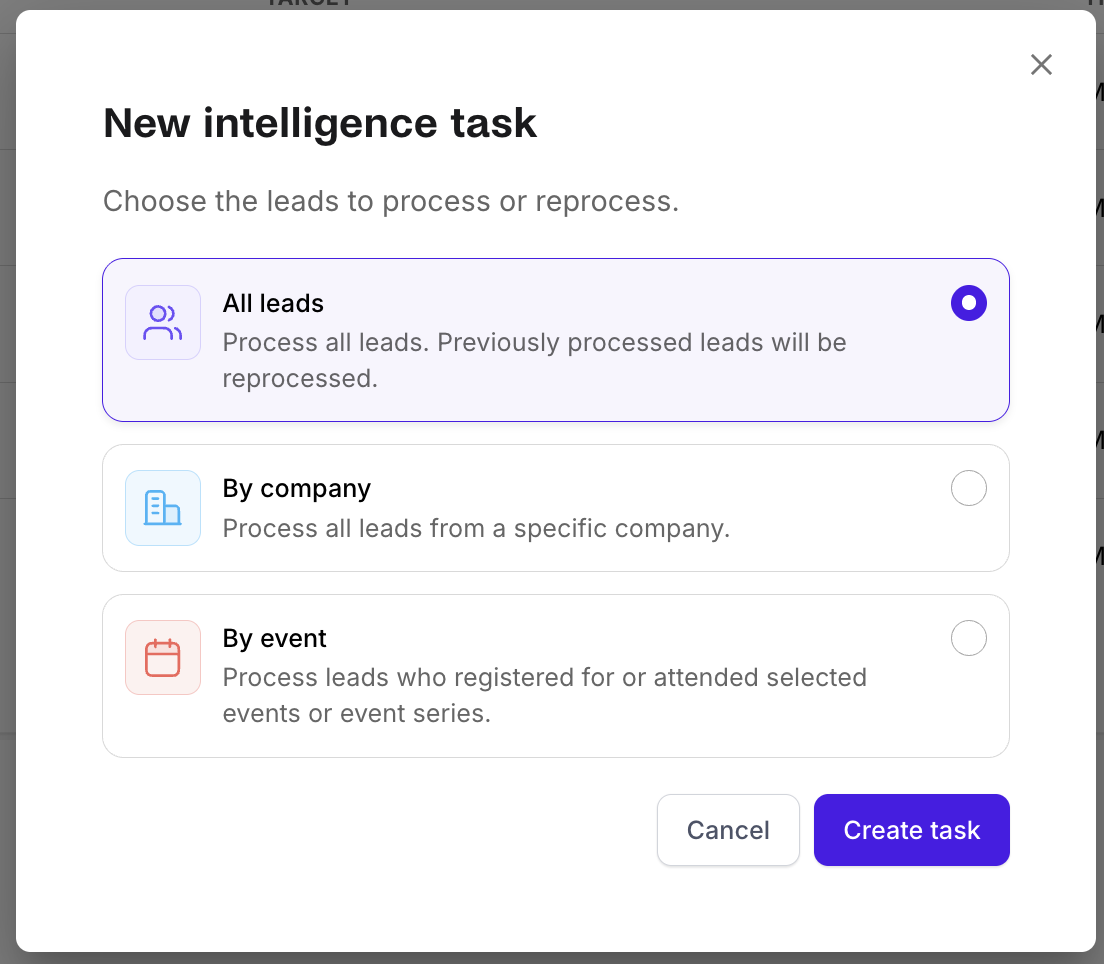
For your first run, you'll choose "All Leads." and click the "Create Task" button.
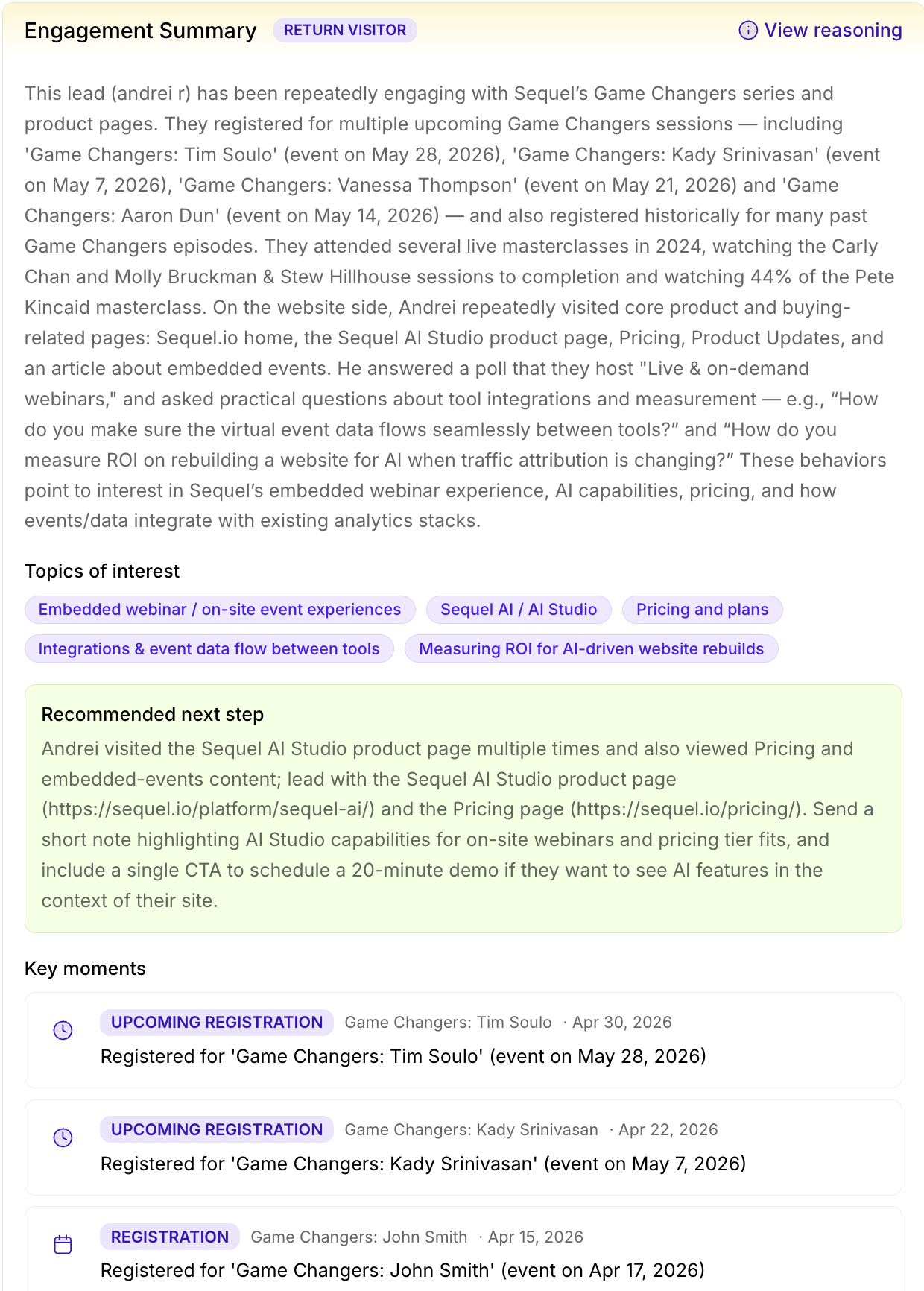
The results of the intelligence run can be seen in Audience Insights for leads and company records. To view AI summary, etc. click on the "AI Summary" button next to any lead or company.

Within each summary, you'll find:
Summary based on engagement data analysis
Recommended next steps
Key moments in activity