Sequel Agents Overview
Last updated: October 30, 2026
Sequel agents take repetitive webinar work off your team's plate before, during, and after your events. Agents check your event setup, personalize follow-up emails, turn recordings into clips and written content, and summarize how your audience engaged. Nothing an agent produces is sent, published, or created until you approve it.
Before you start: give agents context
Agents produce better output when they understand your brand and your program. Complete these two sections before you run your first agent.
Brand Kit
Go to Brand > Brand Kit.
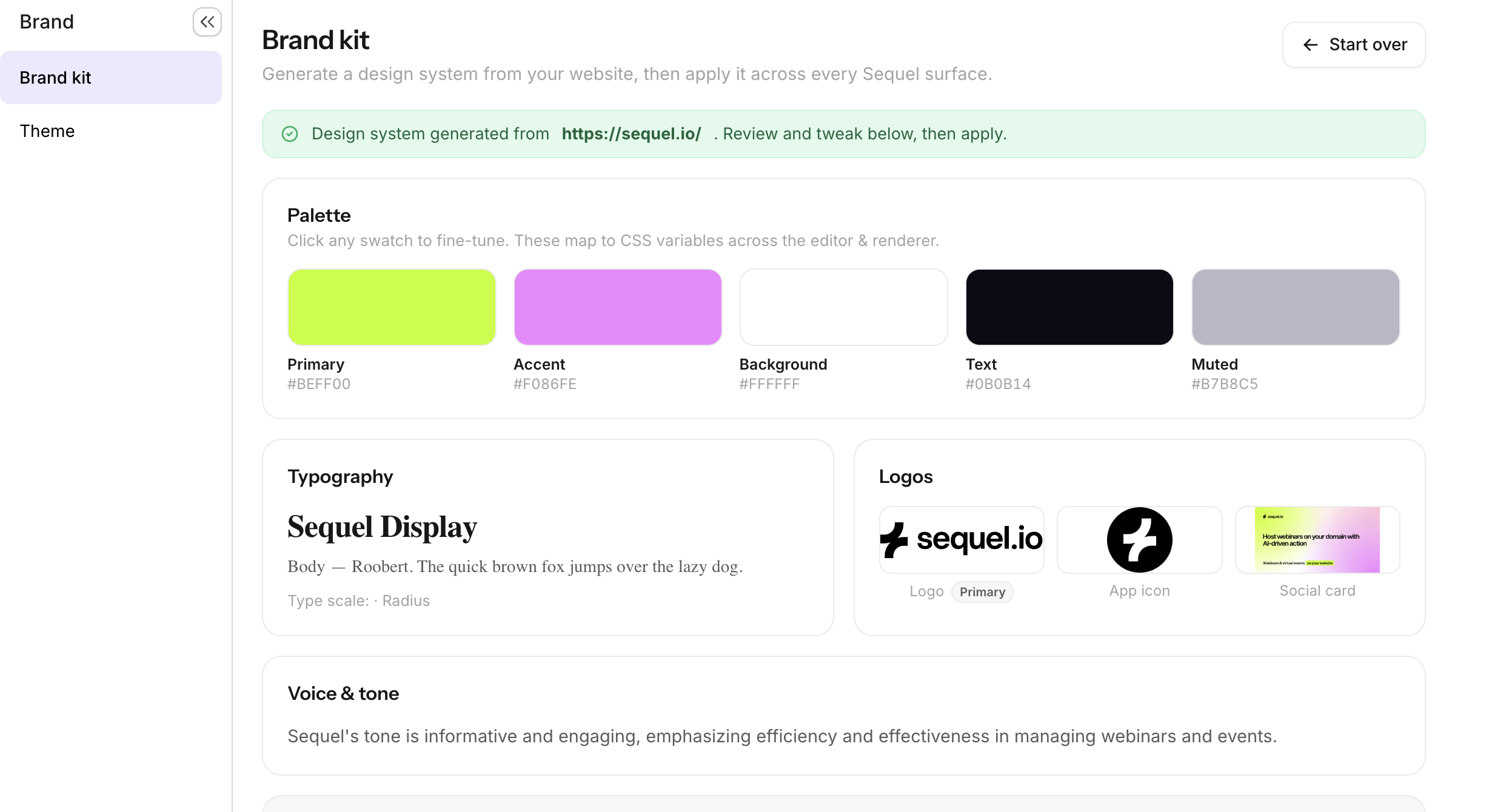
Enter your website URL, and Sequel pulls your colors, logo, typeface, and tone of voice. Agents use the Brand Kit for anything visual, such as caption styling and colors on AI clips.
Program Information

In the same section, add details about your company and webinar program. Useful details include what your company does, who you sell to, the primary goal of your event program, and anything more specific you're working toward. Agents use this context when they write blogs, LinkedIn posts, and personalized follow-up emails.
Set up notifications
Agents notify you when a run is complete. Notifications can go to any of these destinations:
In app: Results appear inside Sequel.
Email: Results are sent to the email address you choose.
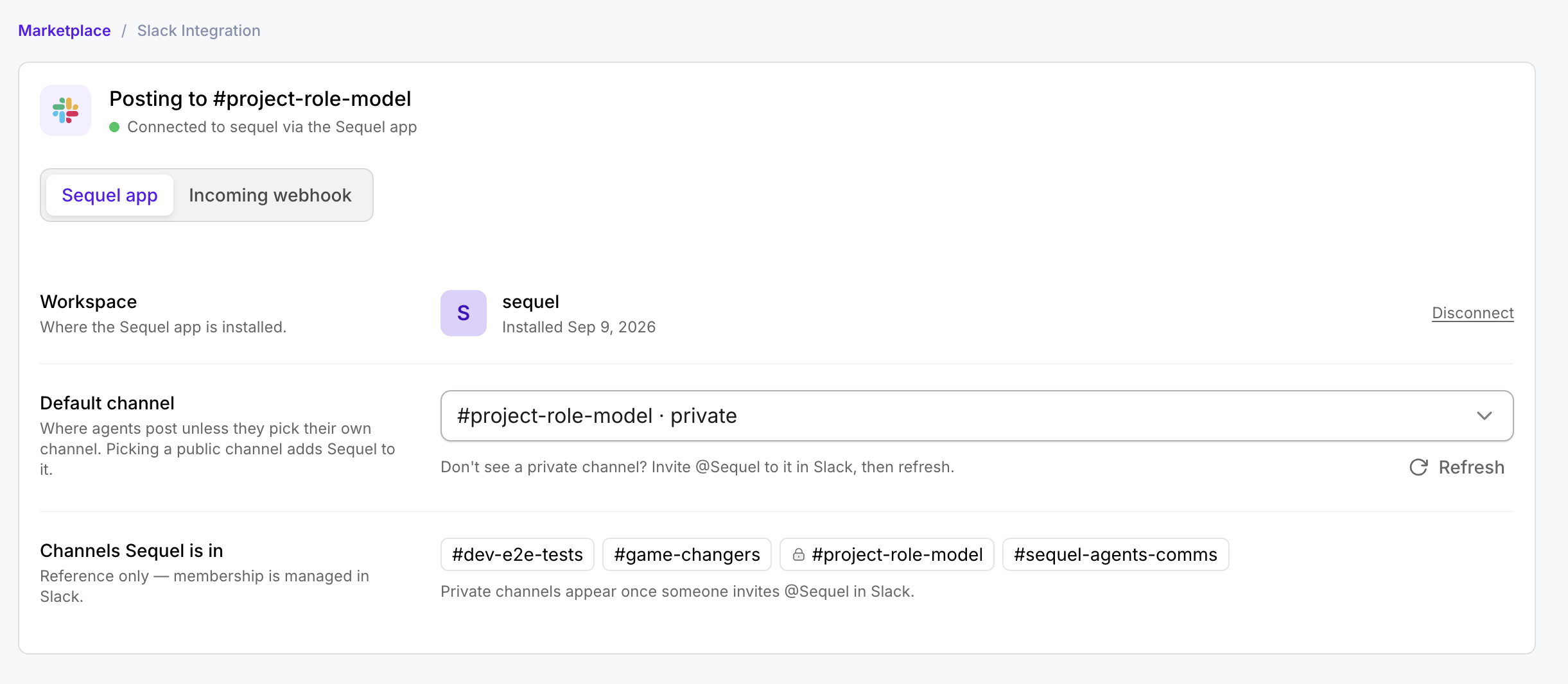
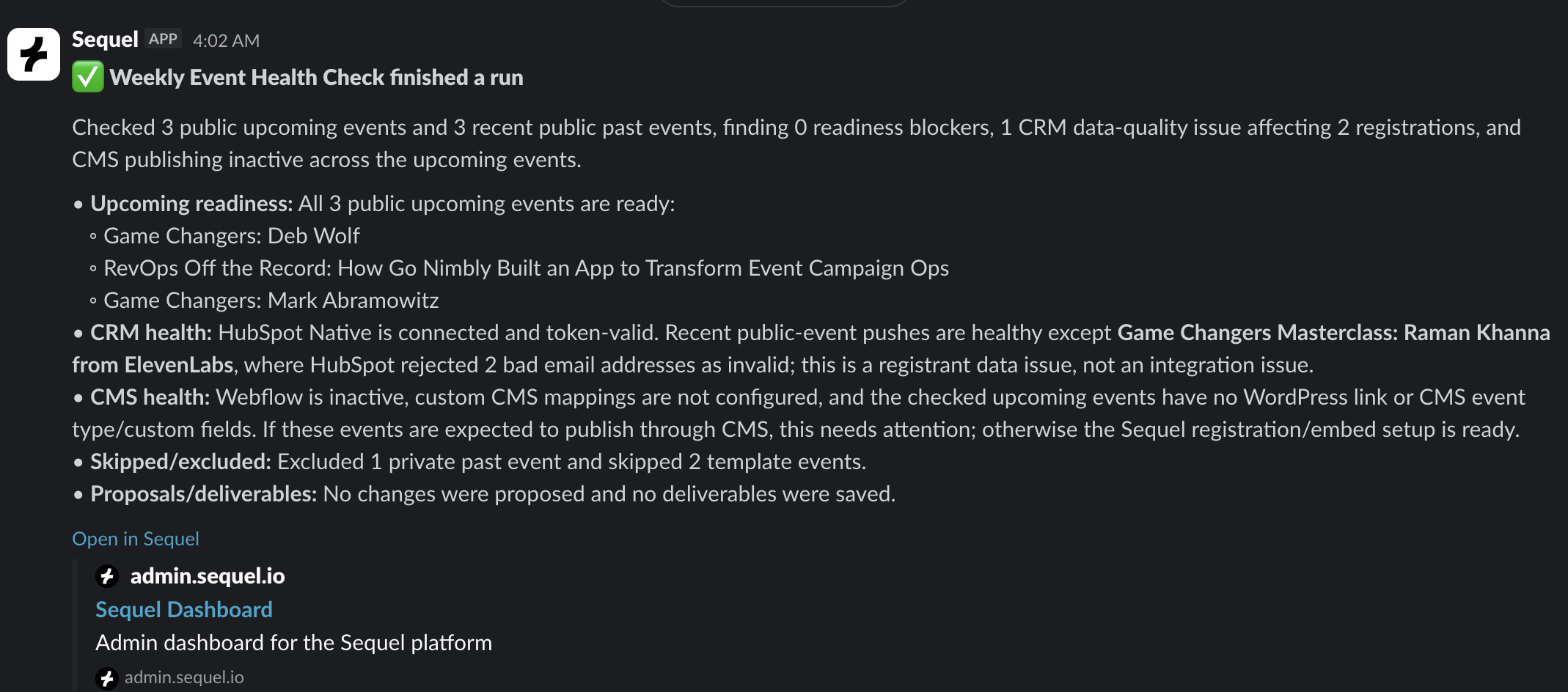
Slack: Results are posted to a channel or sent to you directly.
To use Slack, install the Sequel Slack app from the Marketplace and authorize it with your Slack workspace. You can then post to public or private channels. For a private channel, first add the Sequel app to that channel in Slack.
The four agents
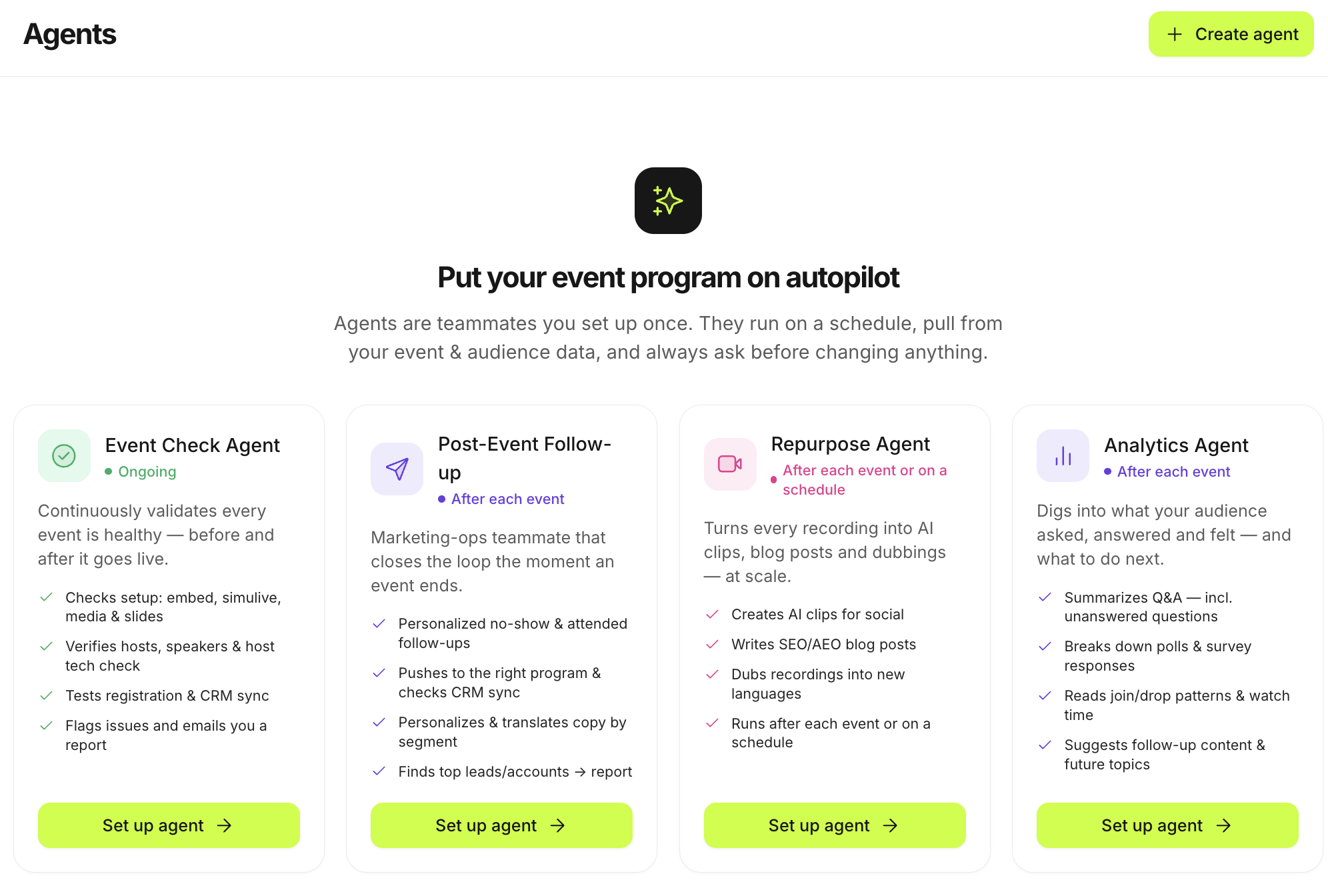
Every workspace includes four ready-to-use agents. Each one can run on a schedule, before or after every event, or manually for a specific event.
Event Check agent
The Event Check agent reviews your event configuration and flags anything that could cause problems. It checks whether:
your embed is set up correctly.
hosts and presenters are assigned.
media is uploaded for simulive events.
your CRM is syncing and whether any sync or API errors occurred.
anything else is missing from the event setup.
You can run it before an event, after an event, on a recurring schedule (for example, weekly), or manually. Many teams send its results to a shared Slack channel so everyone can see whether the event is ready.
Post-Event Follow-Up agent
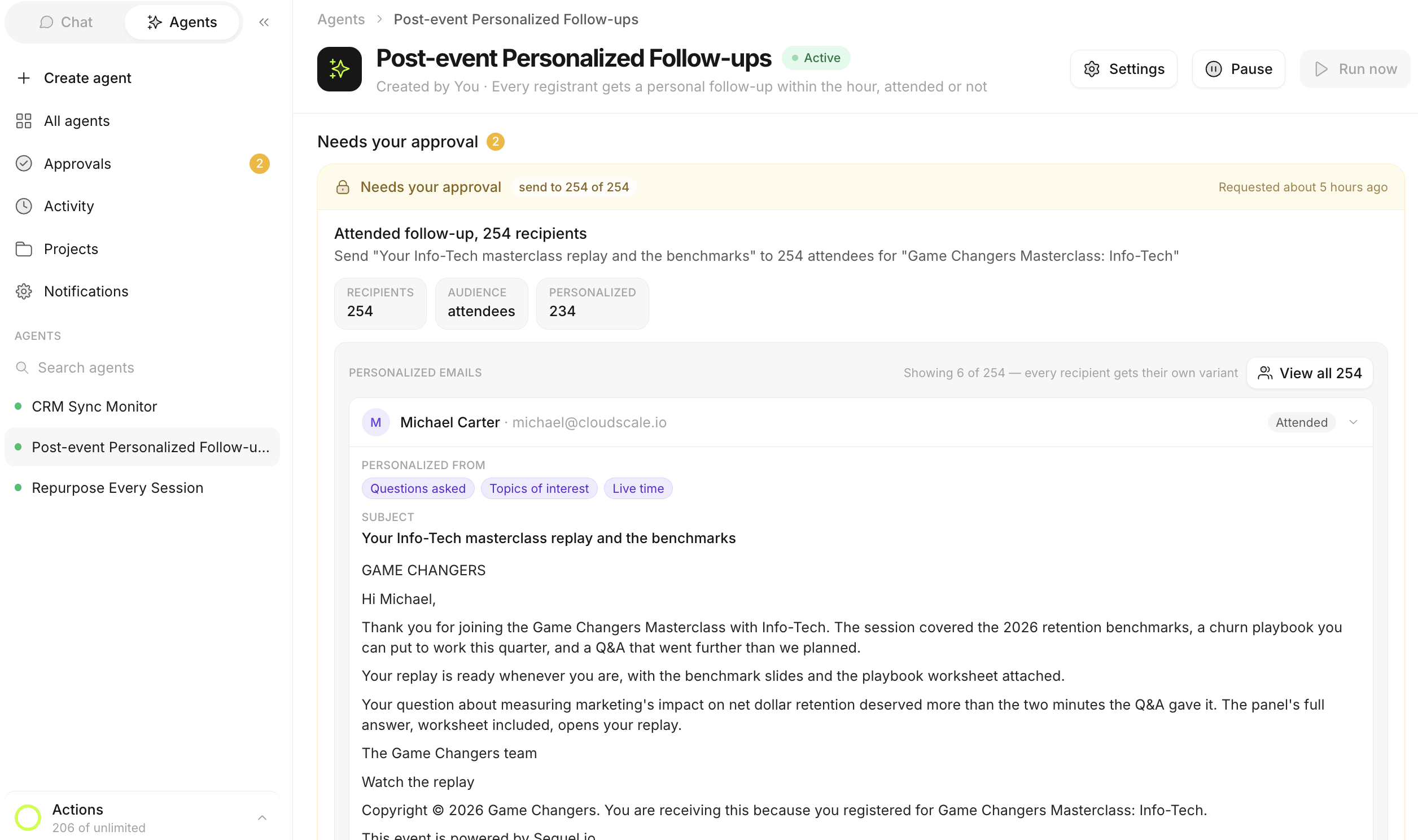
The Post-Event Follow-Up agent personalizes your attended and no-show follow-up emails. It starts from your existing email templates. It then adds a short personalized section for each person, based on how they engaged in the webinar, such as questions they asked or polls they answered.
Drafts appear in Approvals. From there you can do any of the following:
review each email individually.
approve emails individually or in bulk.
regenerate all drafts.
regenerate with your own instructions.
Approved emails are sent through Sequel.
Repurpose agent
The Repurpose agent turns your webinar recording into ready-to-edit content. You choose what it produces, which can include:
Social clips: You set how many, such as five.
A blog post: Written from the transcript, with SEO and AEO scoring.
An AI recap: Highlights key moments from the event.
LinkedIn posts.
Dubbed versions in other languages (with our Global Languages add - on).
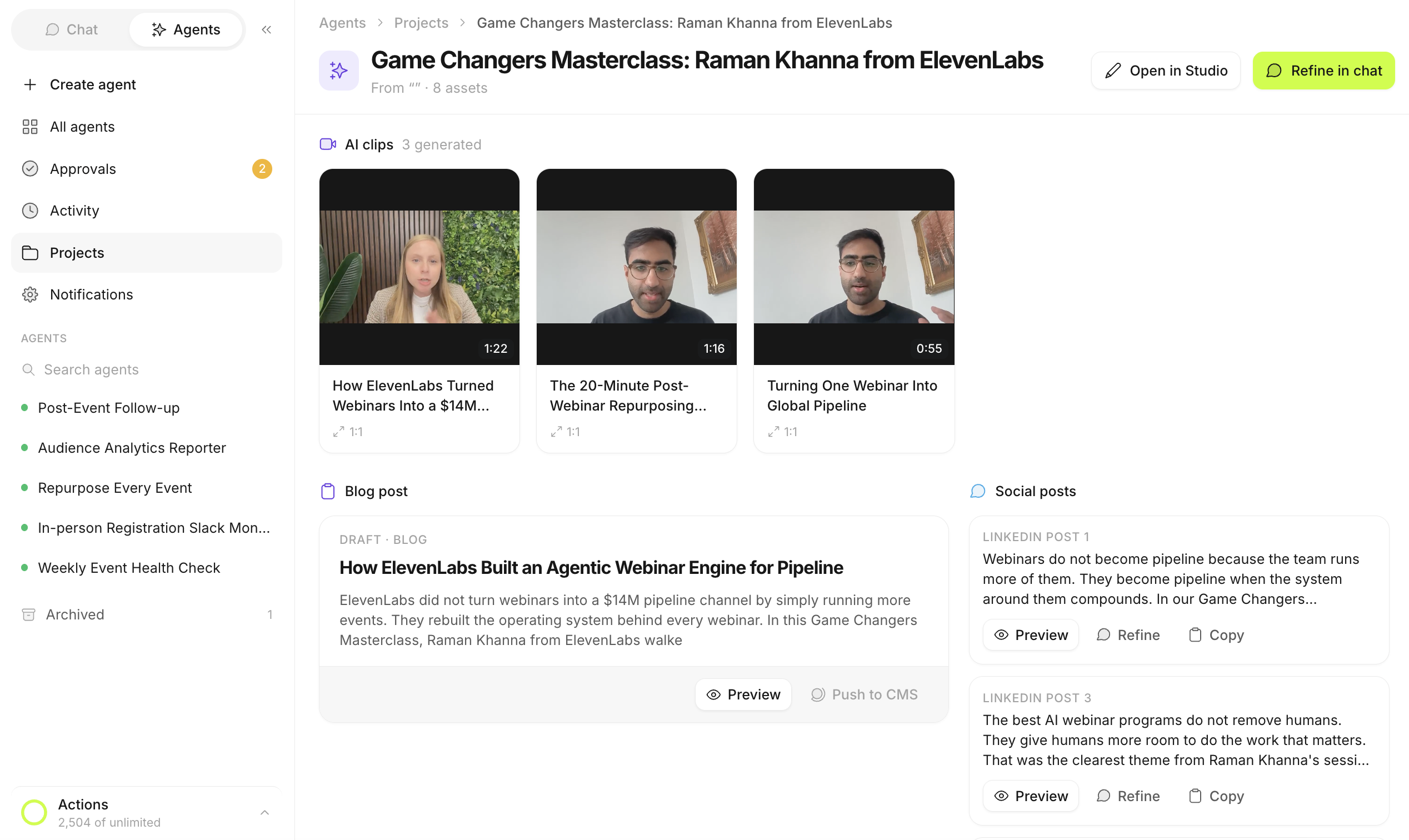
The agent saves everything into a project, where you can review, refine, and approve each piece. You can refine any piece of content in chat by describing the change you want.
Clips have two editing options:
Refine in chat: Describe the change in plain English. For example: "Remove the first five seconds," "Make sure the clip includes Deb's full sentence," or "Optimize this for LinkedIn."
Edit in Studio: Open the clip in the Studio editor to make changes yourself.
Analytics agent
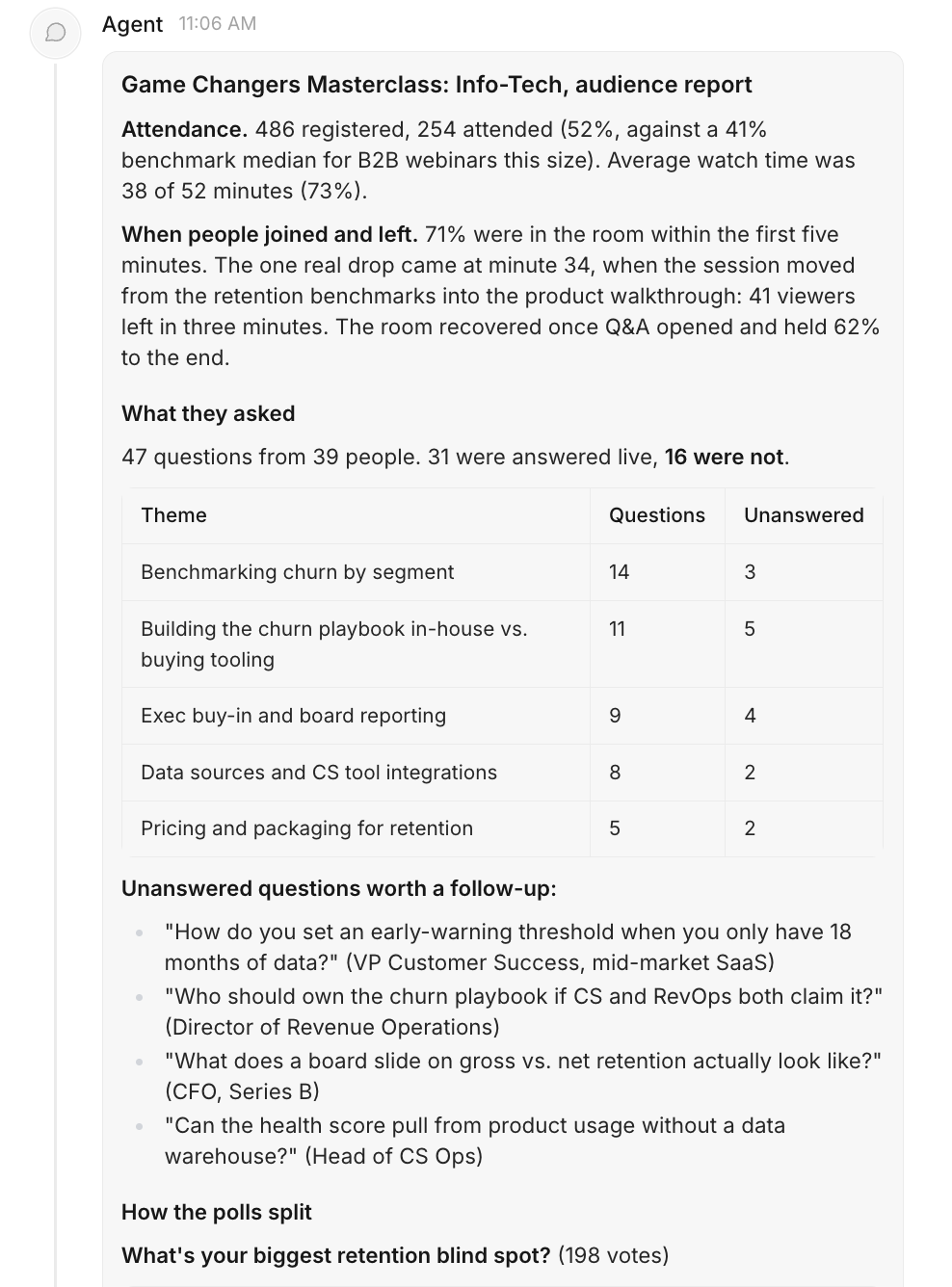
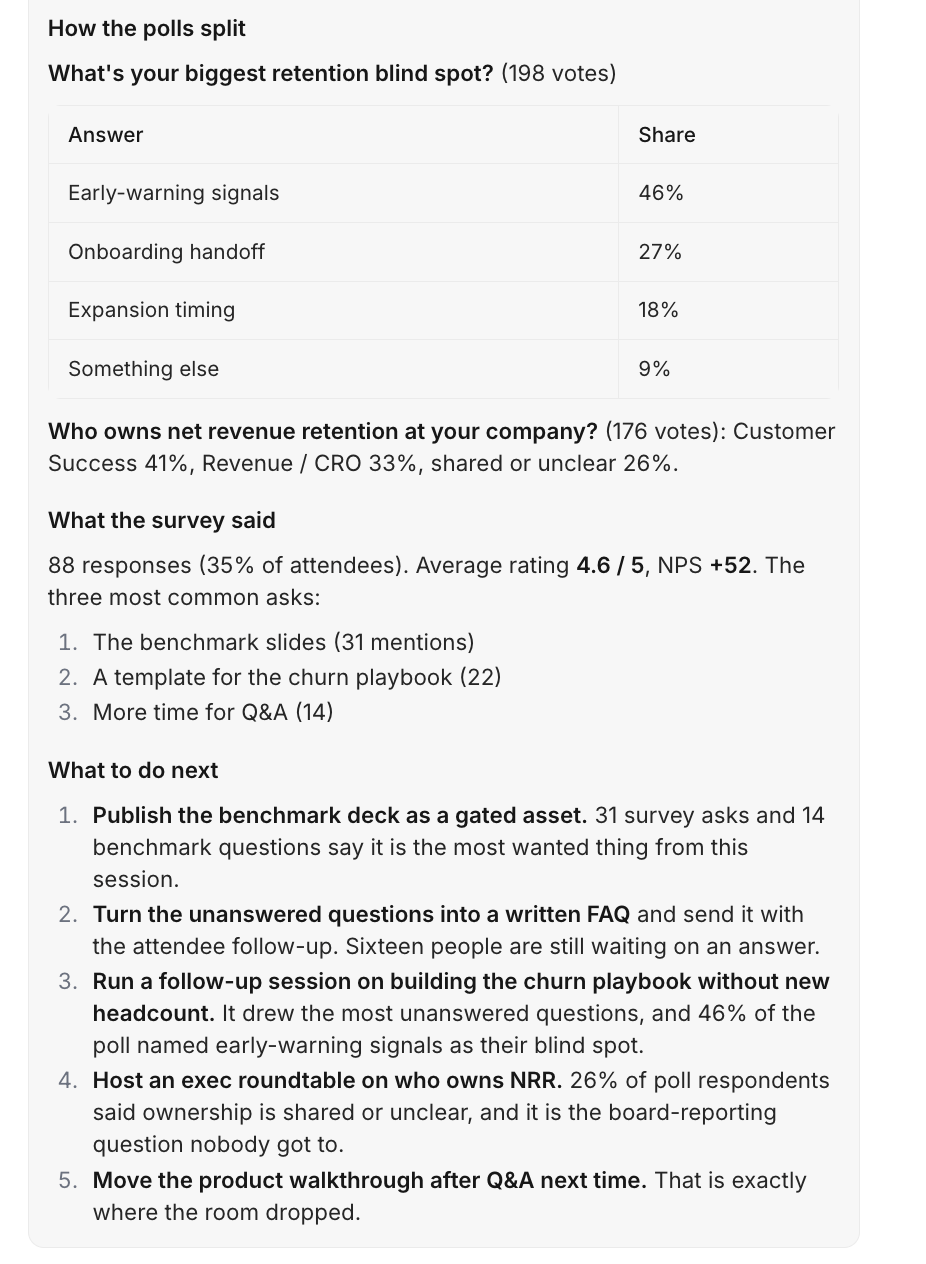
The Analytics agent summarizes how your audience engaged. It can do the following:
summarize Q&A and poll results.
highlight where attendees dropped off.
suggest follow-up content and future webinar topics based on what people asked and engaged with.
compare your results to benchmarks.
By default it runs after each event. You can also adjust its goals and schedule for other kinds of reports. For example, a monthly report could cover all events from the month, the best-performing event, the topics that resonated most, and suggested future topics. You can also add instructions to filter the data, such as excluding your own employees from attendance reports.
Customize an agent
Open any agent to adjust its settings:
Goals: What the agent should focus on.
Frequency: When the agent runs, such as before or after every event, on a recurring schedule, or manually.
Personalization instructions: Guidance on tone, wording, or terms to avoid.
Reference files: Upload documents such as tone-of-voice guides, or markdown files describing how you want content written.
You can also create your own agent from scratch using the same skills the four ready-to-use agents are built on.
Agent memory
Our agents remembers feedback you give it. Suppose a blog doesn't match your formatting, or an email uses a word you never use. Tell it what to change in chat, then ask it to commit the change to memory. Future runs follow that guidance.
Because every company writes differently, plan to review the first few outputs closely and give feedback. Output quality improves as the agent learns your preferences.
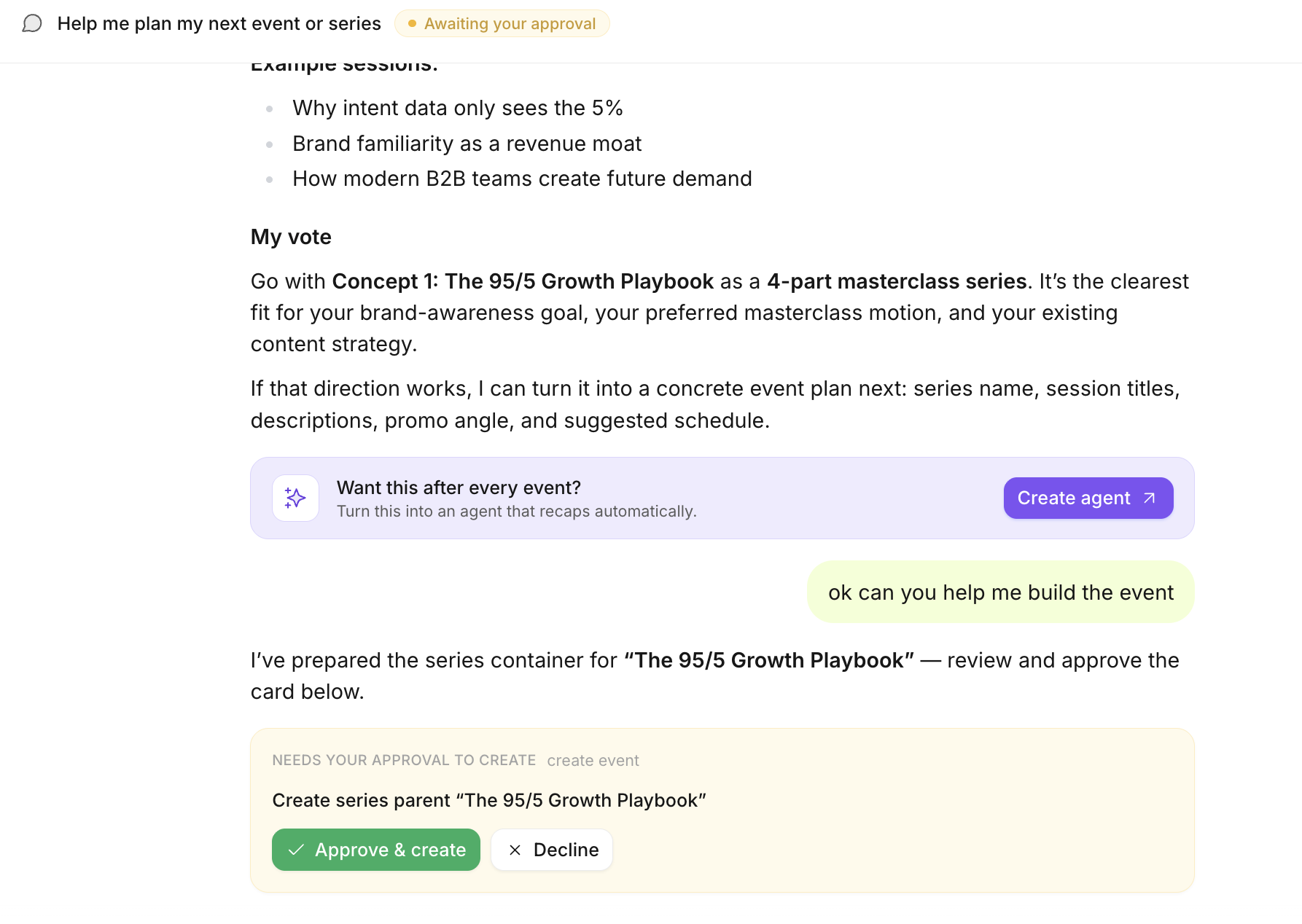
Plan and build events with chat
Chat lets you strategize and build in the same conversation. You can ask it to:
help you plan your next event or series.
compare your program to industry benchmarks.
find gaps in your recent events and suggest topics for a specific goal, such as driving demos or customer adoption.
When you're ready, tell chat to build the event. It creates the standalone event or adds sessions to a series, using the details you provide, such as date, time, theme, and Marketo program ID.
Use Sequel in Claude and other AI tools
Nearly everything Sequel's agents can do is also available through the Sequel MCP Server, including building events, repurposing content, and creating and running agents. Once you connect the MCP Server to Claude or another AI tool, you can combine Sequel event data with your other connected tools.
For example, you can pull an event's engagement data, cross-reference it with open deals in Salesforce, and draft a Slack message for each account owner. The message can say who attended and what they asked.
Email stays inside Sequel. Drafting and sending follow-ups and invites, and industry benchmarks, are available only in Sequel.
To set up the connection, see Connecting Sequel.io to Claude or Connect Sequel to ChatGPT App. Some organizations restrict custom connectors, so you may need help from your IT team or AI tool administrator.
Recommended first steps
Complete your Brand Kit and Program Information.
Set up notifications. Send results to yourself or a private Slack channel while you evaluate them.
Run the Event Check agent before your next event and the Analytics agent after it.
Run the Repurpose agent on a recent recording and review the output.
Give feedback in chat and commit it to memory.
FAQ
Do agents send emails or create events automatically? No. Emails, published content, and new events all require your approval first.
Can follow-up emails be sent through HubSpot or Marketo?
No. Approved emails from the Post-Event Follow-Up agent are sent through Sequel.
Does the Post-Event Follow-Up agent work for events in other languages?
Yes.
Who can use agents?
Admins and Events Managers
Can agents push content to my CMS?
This is planned and will be live soon.
How does the Repurpose agent decide which moments to clip?
It identifies highlights from the recording and cuts them automatically, so you start from a draft instead of scrubbing through the full video.